
Plan > Notify > Assess > Review > Evaluate
TABLE OF CONTENTS
- Introduction
- How to Access the Reports
- Conditions
- Exceptions
- Recall Month - All
- Review Before
- Additional Support
Introduction
How to Access the Reports
- In SystmOne, go to Reporting > Clinical Reporting
- Open the Arden's Ltd folder
- Navigate and open either the LTC Review I QOF IIF Best Practice I Annual or the LTC Review I QOF IIF I Annual sub folder.
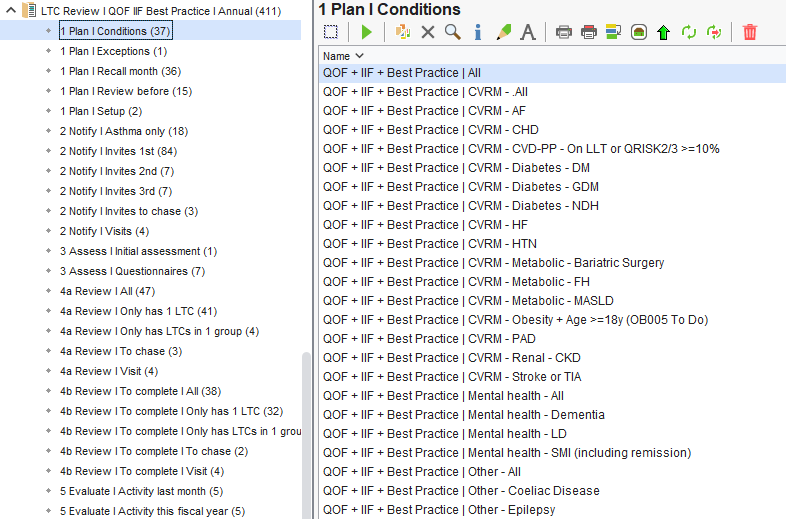
Conditions
- Click on the 1 Plan I Conditions sub folder.
- Right Click on the Conditions report of your choice and select Run.
- To view the list of patients with this condition, right-click and select Show Patients.
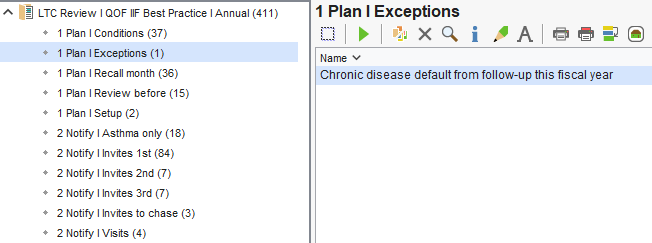
Exceptions
- Click on the 1 Plan I Exceptions sub folder.
- Right click on the report and select Run
- Right Click and select Show Patients to display the list of patients.
Adding the code
The Chronic disease – default from follow-up (170559008) code can be added in bulk against a list of patients on a report, or individually in a patient record by using the LTC Review template.
Adding the code in bulk
This can be done easily from a list of patients returned by a report of your choice.
- Run the relevant report.
- Right click the report and select Show Patients.
- Select the patients you wish to remove from the invite process.
- Right click and choose Actions > Add Read Code.
- In the window that opens, click on the
 icon next to 'Read Code'.
 - In the code browser, search for and select Chronic disease – default from follow-up
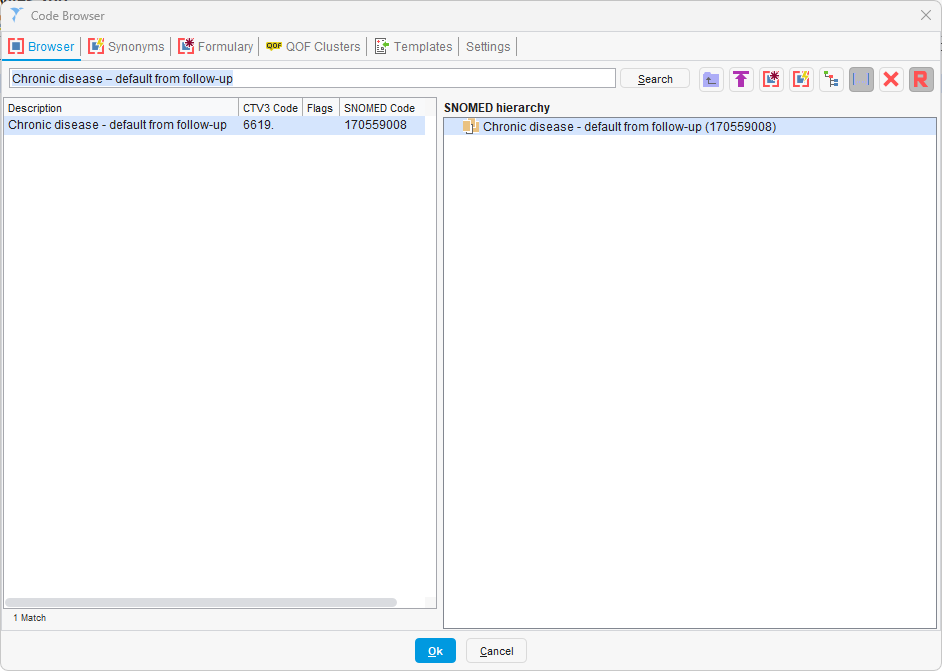
- Click OK. Set the event date if backdating the code, and any notes to be added with the code if you so wish.
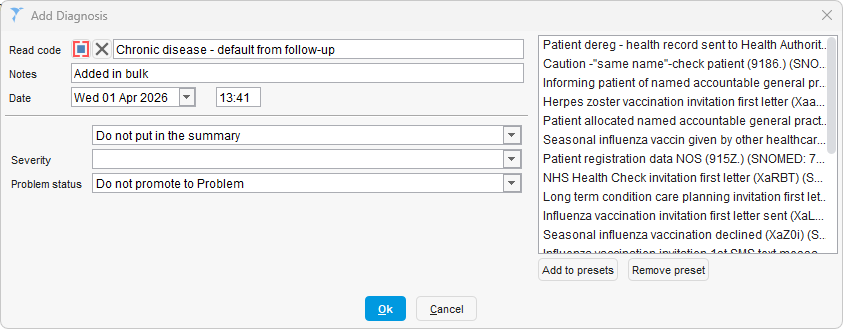
- Click OK to add the code to all selected patients.
⚠️Please Note
- Preset codes can be added in this window by selecting Add to presets, allowing the invite code to be quickly selected in future.
Adding the code in a patient record
- Open the patient record of your choice.
- Click on the LTC Review icon
 in the patient demographic box in the top right of SystmOne.
 - In the template that opens, click on the Default from follow-up button in the bottom left.
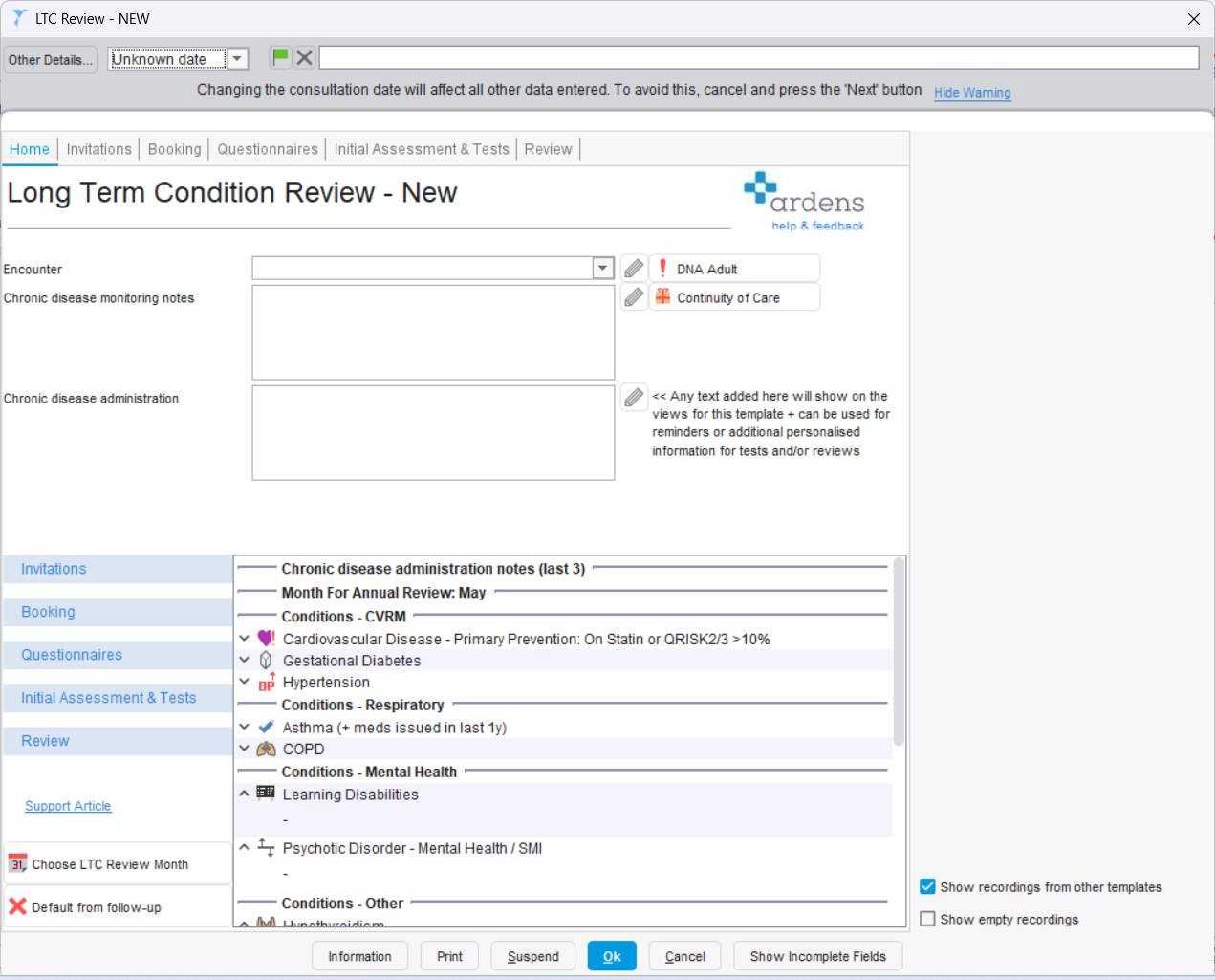
- In the window that opens, click Default from follow-up
- Click OK on the template
- Save the patient record.
Recall Month - All
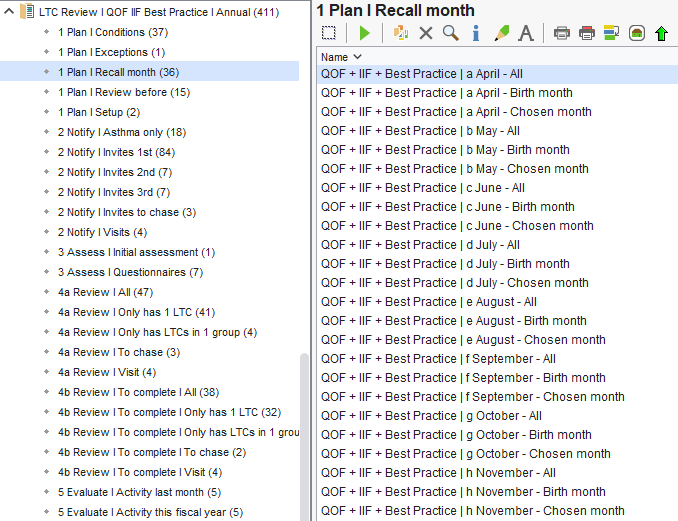
Recall Month – Birth month: patients due for recall in their usual birthday month
Recall Month – Chosen month: patients who are recalled in a different month from their birthday month.
- Click on the 1 Plan I Recall month sub folder.
- Right click on the report of your choice from the list and select Run
- Right Click and select Show Patients to display the list of patients that falls into that recall month.
Moving a Patient’s Recall Month
By default, patients are invited for their LTC review in their month of birth. However, it is possible to move a patient to a different recall month where appropriate.
This may be useful, for example:
- if a patient is unavailable during their birth month (e.g. students away during summer)
- if a patient prefers to attend at the same time as a relative or carer
- to help balance clinic capacity across the year
This is achieved by adding a specific recall month code to the patient record. Once added, the patient will be included in the invite reports for the chosen month instead of their birth month. These patients will also appear in the Chosen month reports shown above.
The code can be added:
- individually within a patient record, or
- in bulk to a list of patients, depending on practice requirements
⚠️ This does not change the patient’s date of birth — it only changes which month they are included in for recall purposes.
Adding the code in a patient record
- Open the patient record of your choice.
- Click on the LTC Review icon
 in the patient demographic box in the top right of SystmOne.
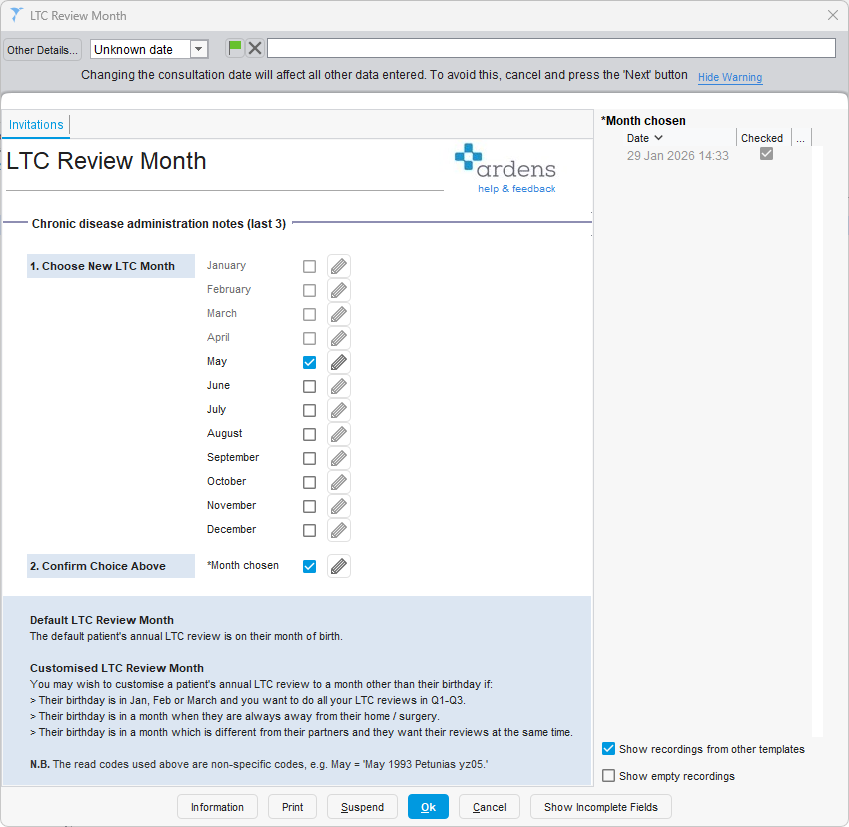
 - In the template that opens, click on the Choose LTC Review Month button in the bottom left of the template.
- Tick the box next to the recall month you want to move the patient to.
- Tick the tick box next to 2. Confirm Choice Above *Month chosen to confirm the choice.
- Click Ok
- Save the patient record when finished.
Adding in bulk
- This can be done easily from a list of patients returned by a report of your choice.
- Run the relevant report. (For example if a practice wanted to move all patients with a recall month of March to a recall month of January, they could use the 1 Plan I Recall month > March - All report)
- Right click the report and select Show Patients.
- Select the patients you wish to add the code to.
- Right click and choose Actions > Add Read Code.
- In the window that opens, click on the
 icon next to 'Read Code'.
 - Select from one of the following codes:
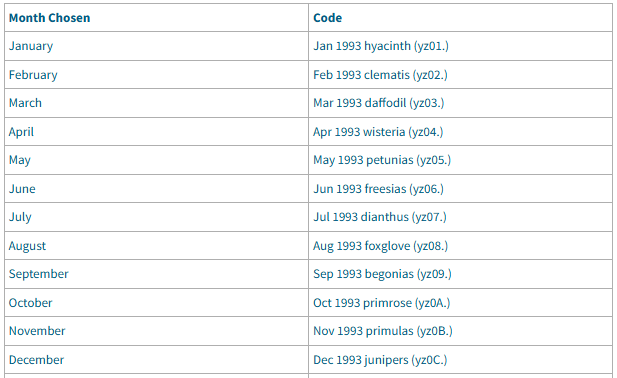
- Click OK. Set the event date if backdating the code, and any notes to be added with the code if you so wish.
- Click OK to add the code to all selected patients.
- Repeat the process for the same patients and add the following code to confirm the change: Chronic disease recall (308430004)
⚠️ Important
- The Chronic disease recall (308430004) confirmation code must also be added at the same time when updating recall months, as this confirms the selected month.
- The recall reports will use the most recent relevant code when determining a patient’s recall month.
Review Before
- Click on the 1 Plan I Review before sub folder.
- Right click on the report of your choice from the list and select Run
- Right Click and select Show Patients to display the list of patients.
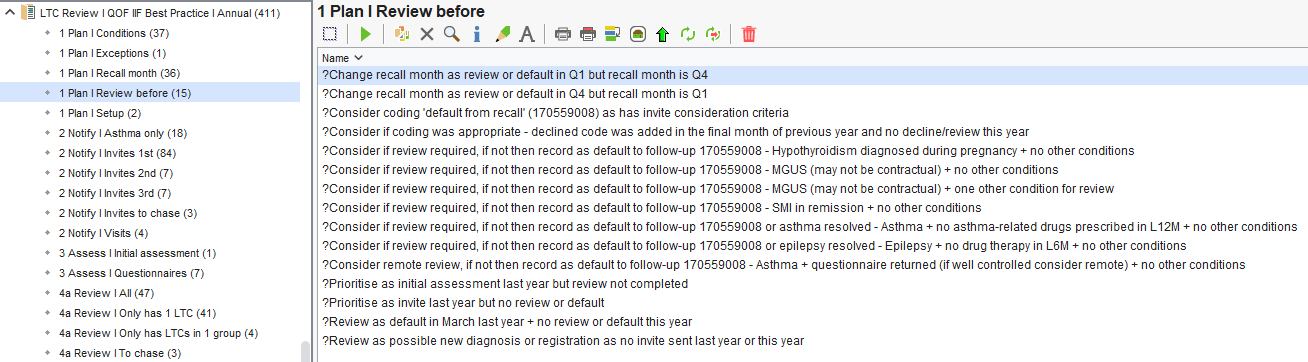
?Change recall month as review or default in Q1 but recall month is Q4: Patients' recall month is January, February or March, but have been reviewed in quarter 4. Consider inviting patients sooner to avoid them going up to 23 months without an annual review.
?Change recall month as review or default in Q4 but recall month is Q1: Patients' recall month is April, May or June, but they been reviewed in quarter 1. Consider inviting the patient later so they are not called in too soon.
?Consider coding 'default from follow-up': For patients with reasonable adjustments, those on the End of Life register, or those with a learning disability or dementia, who may be managed through alternative pathways or require a different approach to care. If you wish to remove these patients from recall for the current fiscal year, add the code ‘Chronic disease – default from follow-up (170559008)’.
?Consider if review required...: These reports refer to best practice conditions. Decide if you wish for these patients to be called in. If you wish to remove these patients from recall for the current fiscal year, add the code ‘Chronic disease – default from follow-up (170559008)’.
?Prioritise as initial assessment last year but review not completed: For patients that have attended an initial assessment last fiscal year but not have a review completed. Decide if you wish to recall these patients sooner.
?Prioritise as invite last year but no review or default:
This report identifies patients who were invited for an LTC review in the previous fiscal year, but do not have a completed review code recorded in their record.
This means their previous year’s review is still considered open.
As a result, when new invites are sent for the current year, these patients may still appear on the 1st Invite reports, even though they have already been invited.
Why this happens
If a patient was invited last year but does not have one of the following codes recorded:
- Chronic disease initial assessment (170557005)
- Chronic disease management annual review completed (888461000000107)
- Chronic disease - default from follow-up (170559008)
…then the reports still treats their previous review as incomplete.
What to do
Practices should review the patients returned in this report and add one of the following codes to close off the previous year’s review:
- Chronic disease initial assessment
- Chronic disease management annual review completed
- Chronic disease – default from follow-up
Where appropriate, the code should be backdated to the previous fiscal year (e.g. on or before 31st March).
Once one of these codes has been added, the previous year’s review will be closed and the patient will move correctly through the current year’s recall process.
Why this matters
- If these patients are not reviewed, they may:
- remain on the 1st Invite reports despite being invited
- appear to be “stuck” in the recall process
?Review as default last year + no review or default this year: These patients were removed from the recall system last fiscal year and have not had a review for the current fiscal year. Decide if these patients need to be removed again this year or recall sooner for a review.
?Review as possible new dx or reg as no invite sent last year or this year: Patients that have recently been diagnosed with a new condition or newly registered to the practice. Decide if and when you wish to recall the patients.
Additional Support
- Register for our LTC webinars – covering key updates, practical demonstrations, and best practice tips.
- Explore more helpful Support Articles.
- Book training for your GP Practice, PCN or ICB.